ComfyUI 02: A Complete Guide to Workflows
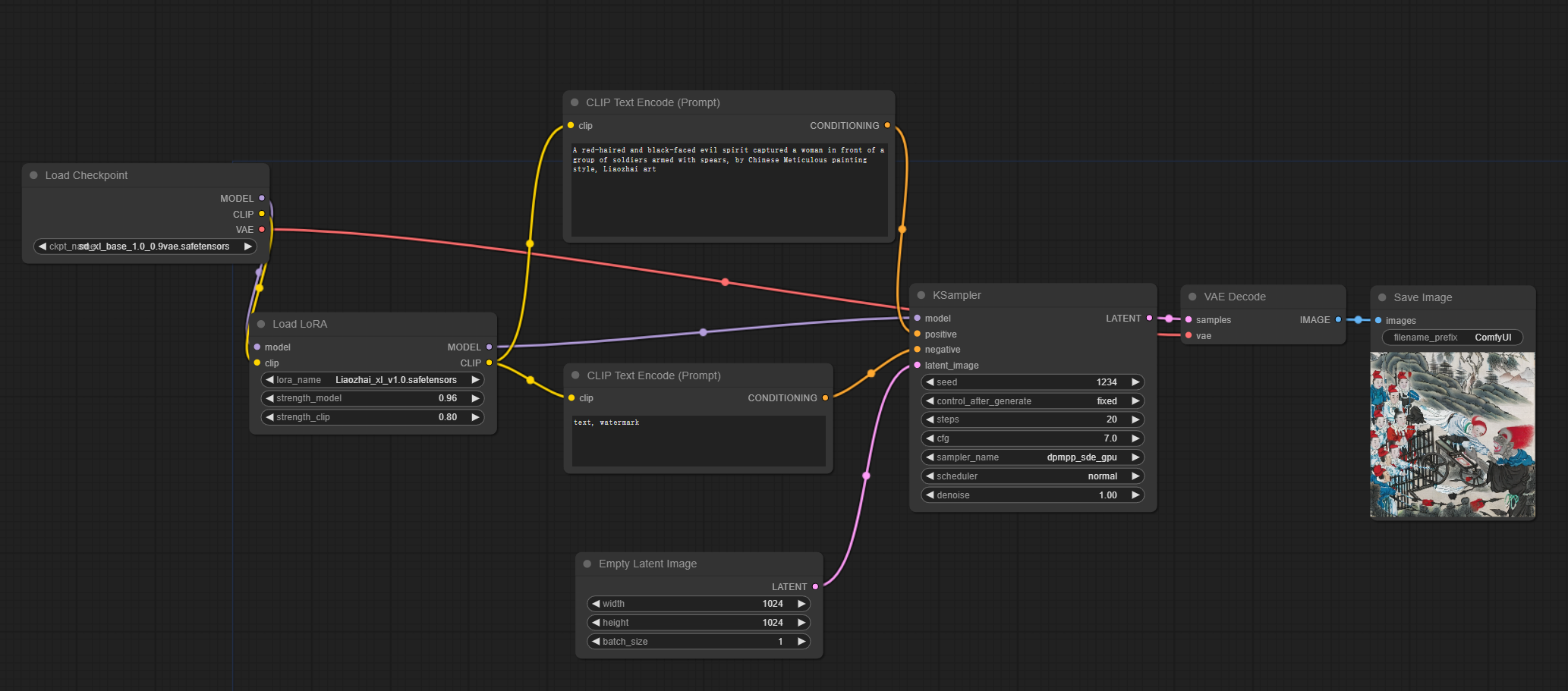
What is a ComfyUI Workflow
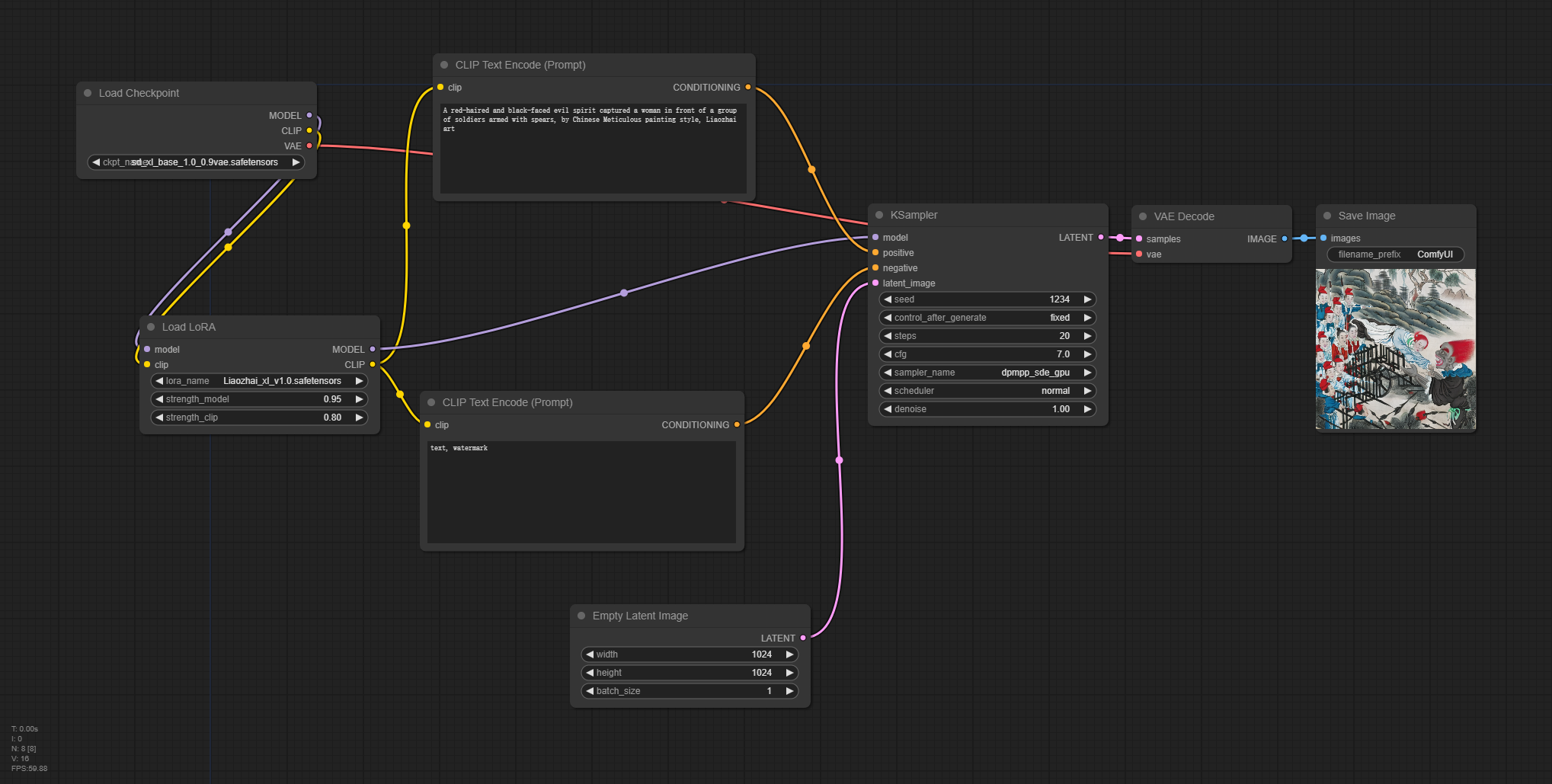
The Workflow is the essence of ComfyUI. A workflow here refers to the node structure and the data flow running through it.
In the image above, starting from loading the model on the far left, it goes through CLIP Text Encode to process the prompt keywords, adds an initial Latent Image, then the sampler, VAE decode, and finally produces the generated image.
Through the node-based approach, besides filling in parameters like in webui, you can also observe the processing pipeline — this is where ComfyUI's clever design shines. During each generation, when the program reaches a certain step, the corresponding node automatically highlights. Nodes light up sequentially according to their current execution status, which is extremely helpful for understanding the fundamentals of generative AI models (Stable Diffusion).
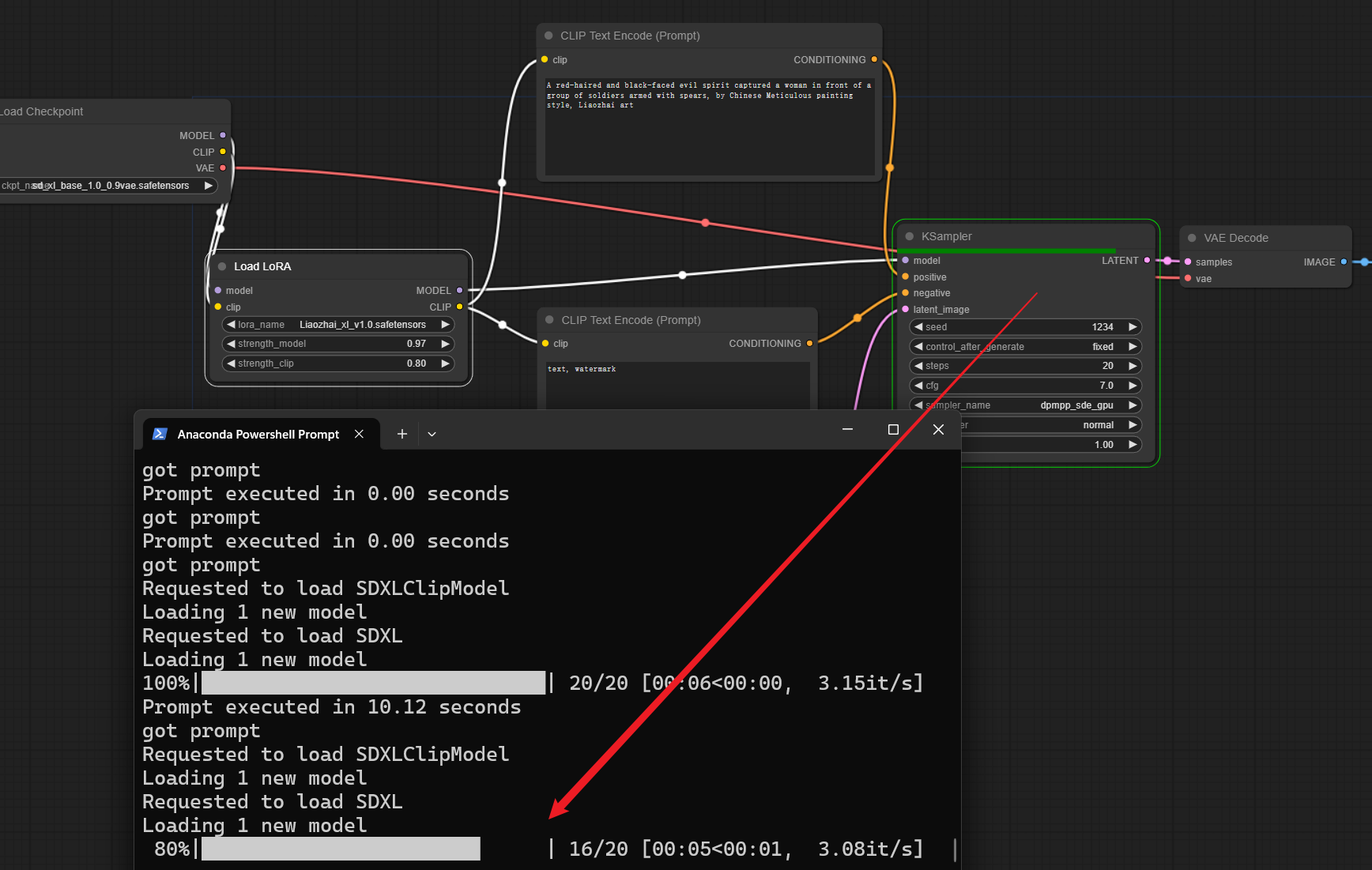
As shown above, when the sampler is working, the KSampler node's green border highlights, corresponding to the generation progress shown in the command line window.
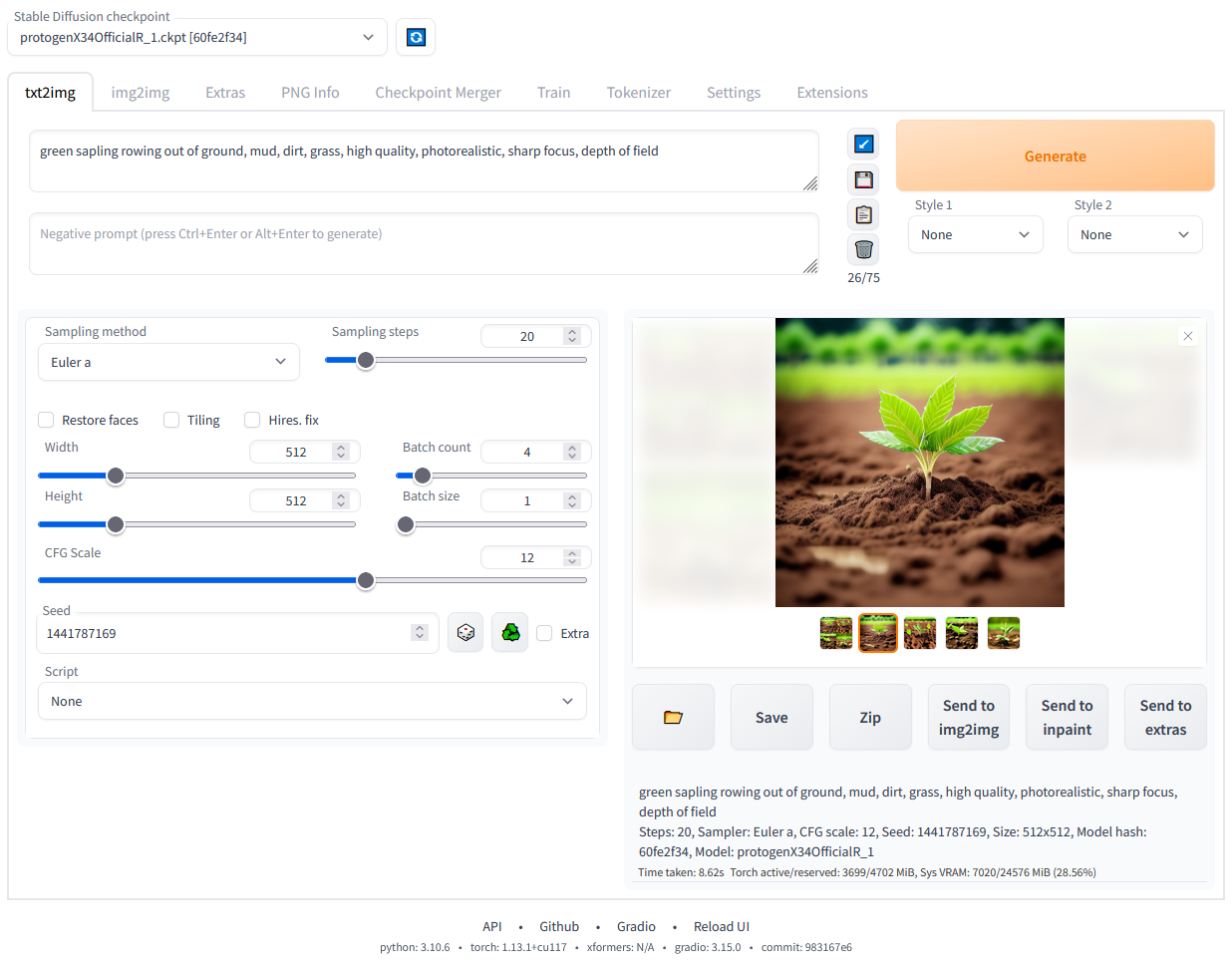
Compare this with the webui experience:
- Set parameters
- Click generate
- Wait for results
Besides observing the command line window for some progress information, the webui interface largely follows traditional software thinking:
Quick Workflow "Reproduction"
PNG Info in webui
Let's first recall webui — when you want to reproduce the generation parameters of an image, you can drag it into PNG Info to view them.
For example, looking at this AI Liaozhai image on Civitai:
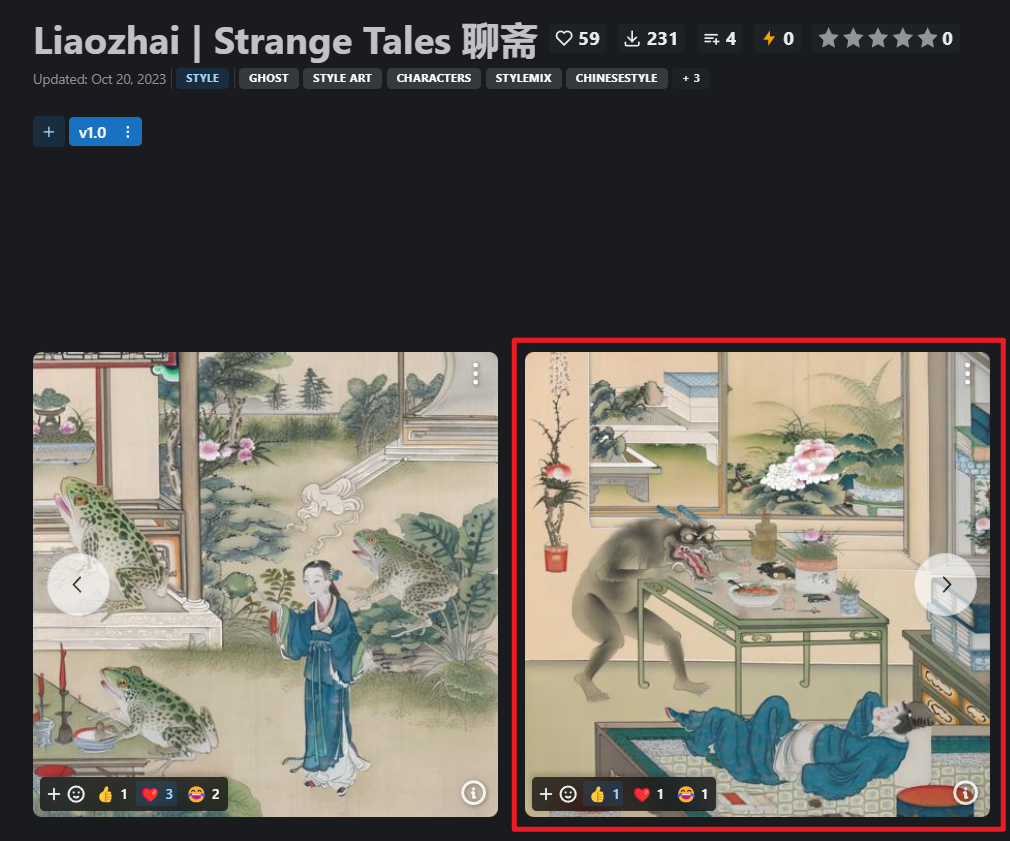
You can right-click to save it, then drag it into webui's PNG Info to view all parameters including the prompts.
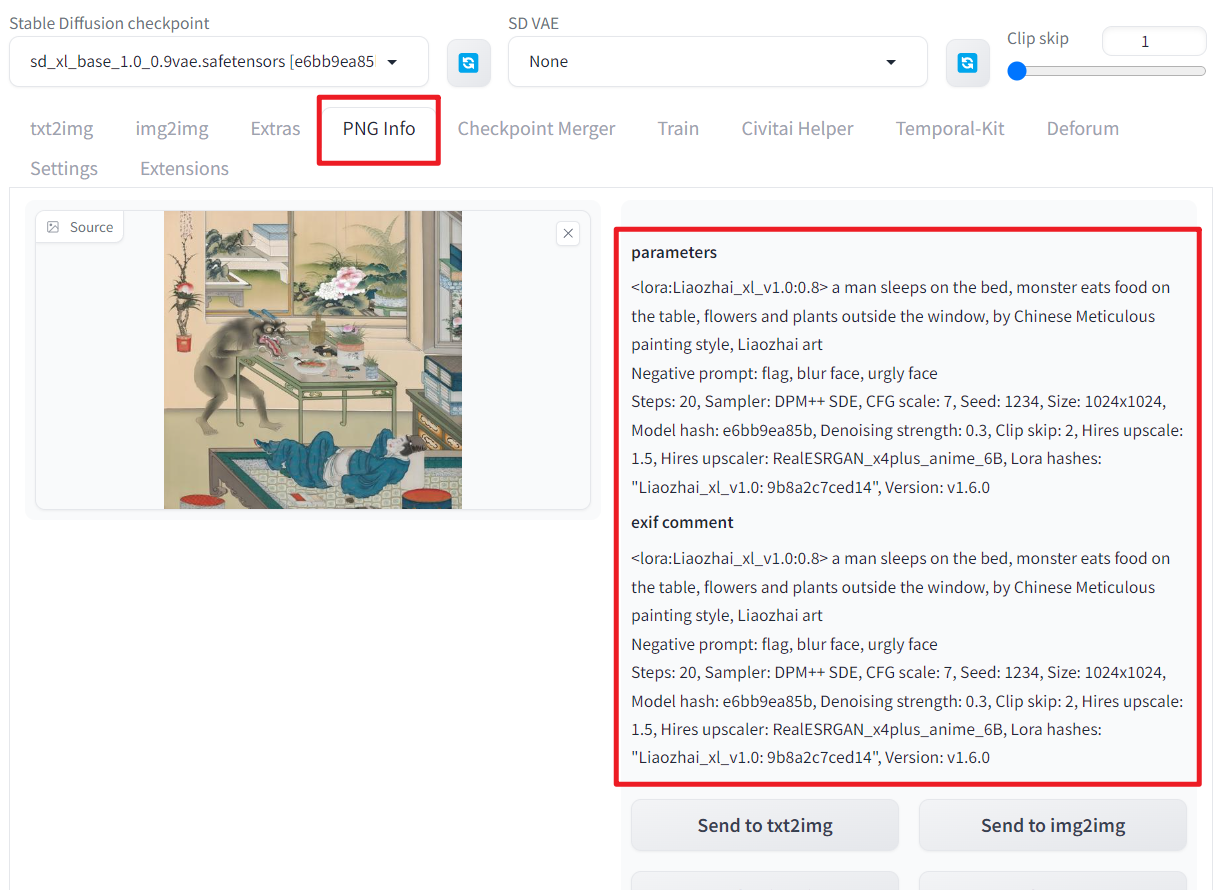
SD webui stores this information in the PNG file's chunks — simply put, there's a data block in PNG files that can store additional text information.
The latest webui seems to have updated the fields it stores. You can right-click the image, open "Properties," and find the information under "Details" > "Comments":
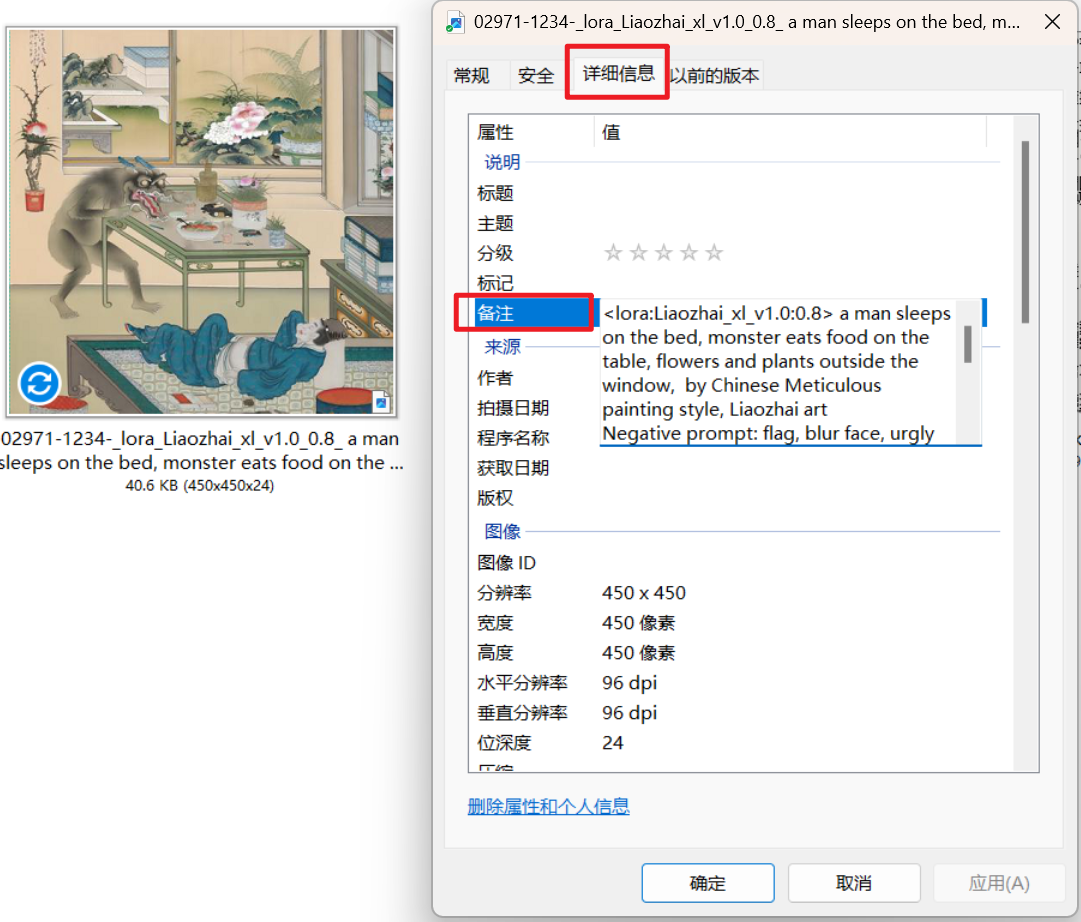
Many general-purpose image software can also view this. For example, XnView — you can see it in its built-in Exif Tools:
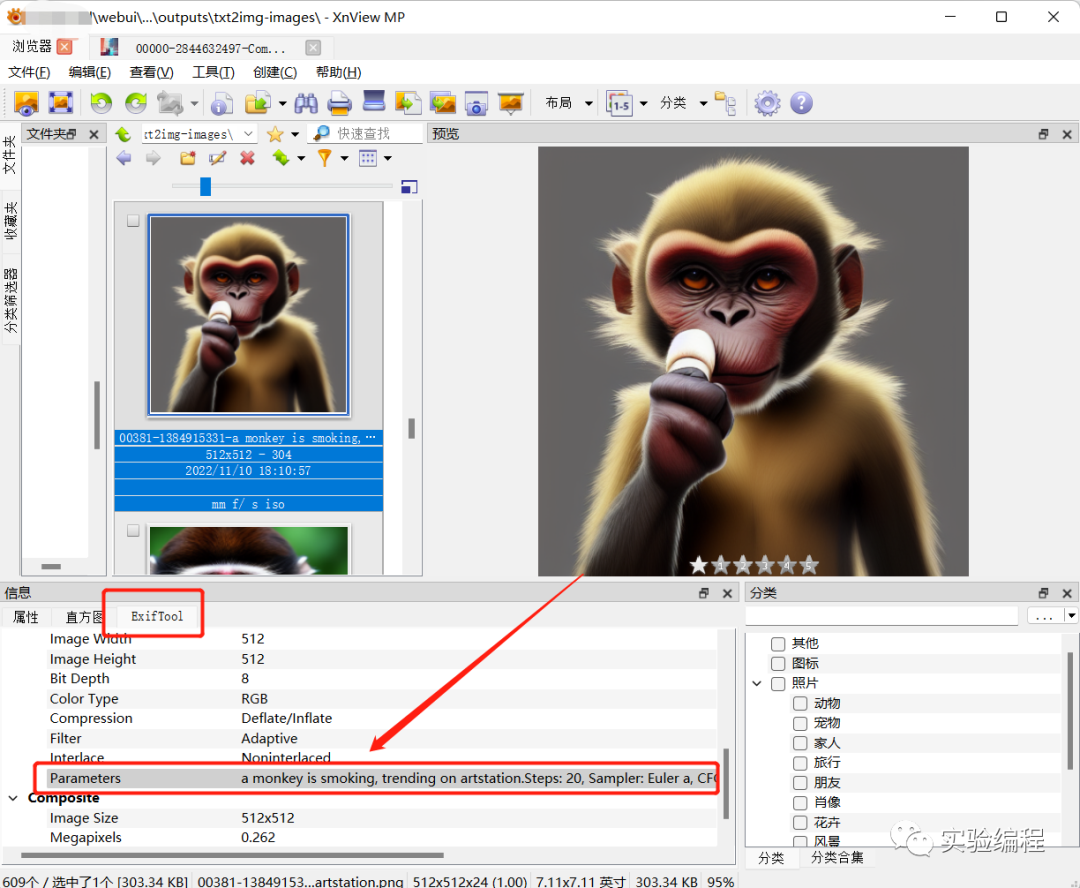
Extra knowledge: This information can also be stripped from images. See my previous article for details:
Prompt Protection! How to Strip Prompt Information from Stable Diffusion (webui) Generated Images
Workflow in ComfyUI
Back to ComfyUI — the parameters from each generation can also be saved and loaded in a similar way.
Generate an image with ComfyUI:
Check properties via right-click:
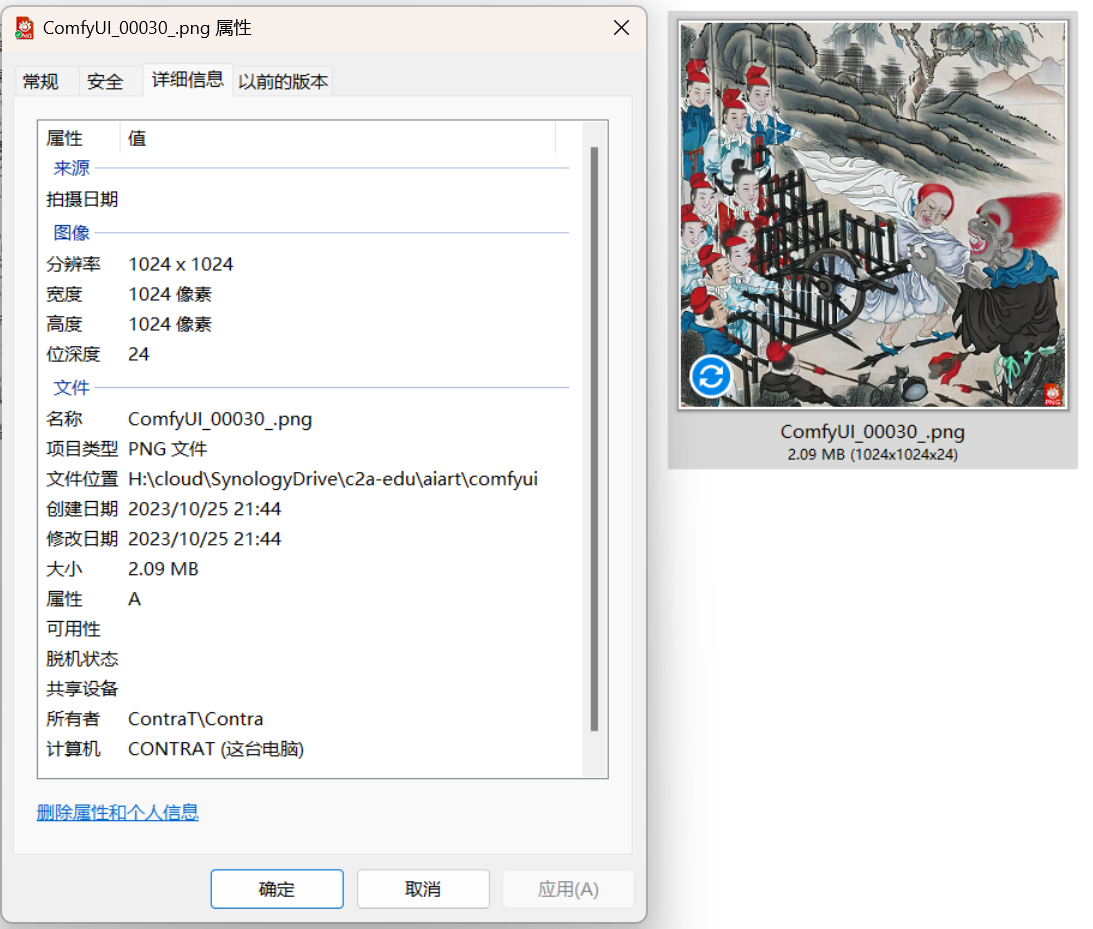
No relevant information found — don't worry, this just means it's not in the fields that Windows Explorer can read. Open it with XnView MP:
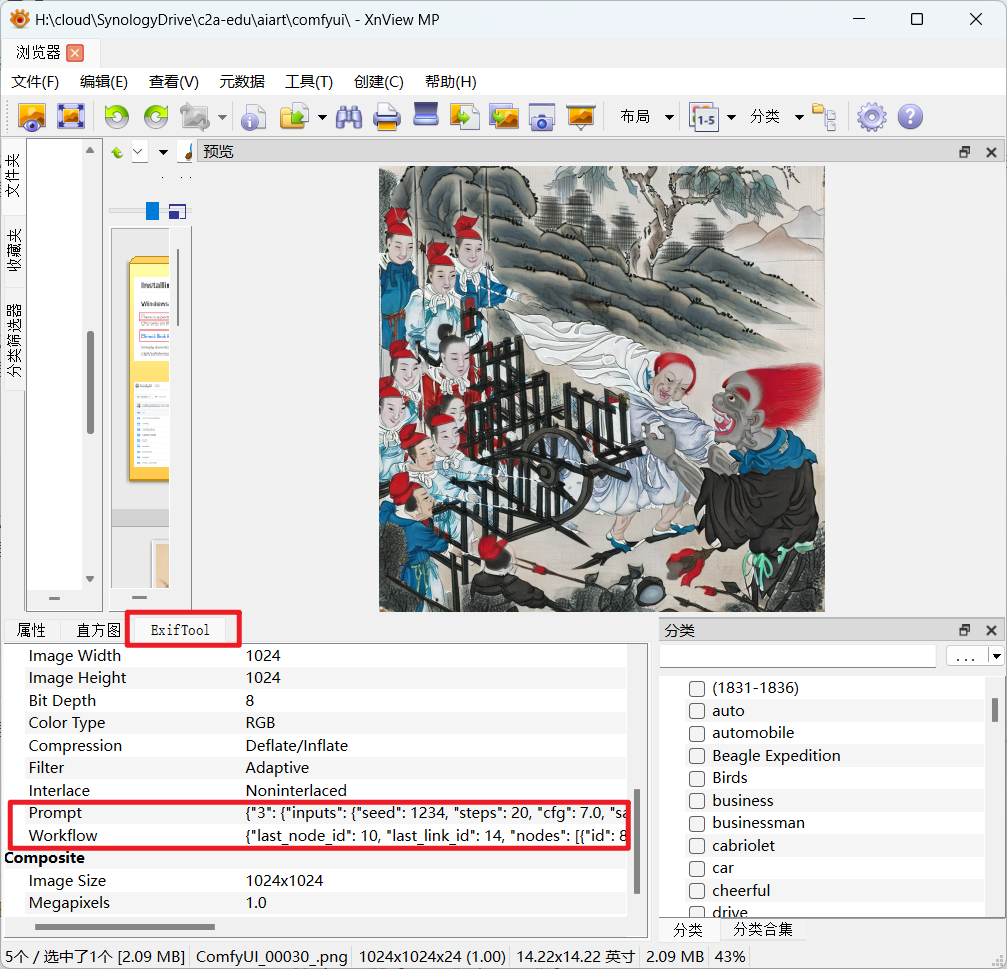
Now you can see it. There are two fields — one is Prompt, containing PNG info-like information:
Prompt {"3": {"inputs": {"seed": 1234, "steps": 20, "cfg": 7.0, "sampler_name": "dpmpp_sde_gpu", "scheduler": "normal", "denoise": 1.0, "model": ["10", 0], "positive": ["6", 0], "negative": ["7", 0], "latent_image": ["5", 0]}, "class_type": "KSampler"}, "4": {"inputs": {"ckpt_name": "sd_xl_base_1.0_0.9vae.safetensors"}, "class_type": "CheckpointLoaderSimple"}, "5": {"inputs": {"width": 1024, "height": 1024, "batch_size": 1}, "class_type": "EmptyLatentImage"}, "6": {"inputs": {"text": "A red-haired and black-faced evil spirit captured a woman in front of a group of soldiers armed with spears, by Chinese Meticulous painting style, Liaozhai art", "clip": ["10", 1]}, "class_type": "CLIPTextEncode"}, "7": {"inputs": {"text": "text, watermark", "clip": ["10", 1]}, "class_type": "CLIPTextEncode"}, "8": {"inputs": {"samples": ["3", 0], "vae": ["4", 2]}, "class_type": "VAEDecode"}, "9": {"inputs": {"filename_prefix": "ComfyUI", "images": ["8", 0]}, "class_type": "SaveImage"}, "10": {"inputs": {"lora_name": "Liaozhai_xl_v1.0.safetensors", "strength_model": 0.9500000000000001, "strength_clip": 0.8, "model": ["4", 0], "clip": ["4", 1]}, "class_type": "LoraLoader"}}
And an additional Workflow field:
Workflow     {"last_node_id": 10, "last_link_id": 14, "nodes": [{"id": 8, "type": "VAEDecode", "pos": [1209, 188], "size": {"0": 210, "1": 46}, "flags": {}, "order": 6, "mode": 0, "inputs": [{"name": "samples", "type": "LATENT", "link": 7}, {"name": "vae", "type": "VAE", "link": 8}], "outputs": [{"name": "IMAGE", "type": "IMAGE", "links": [9], "slot_index": 0}],
...
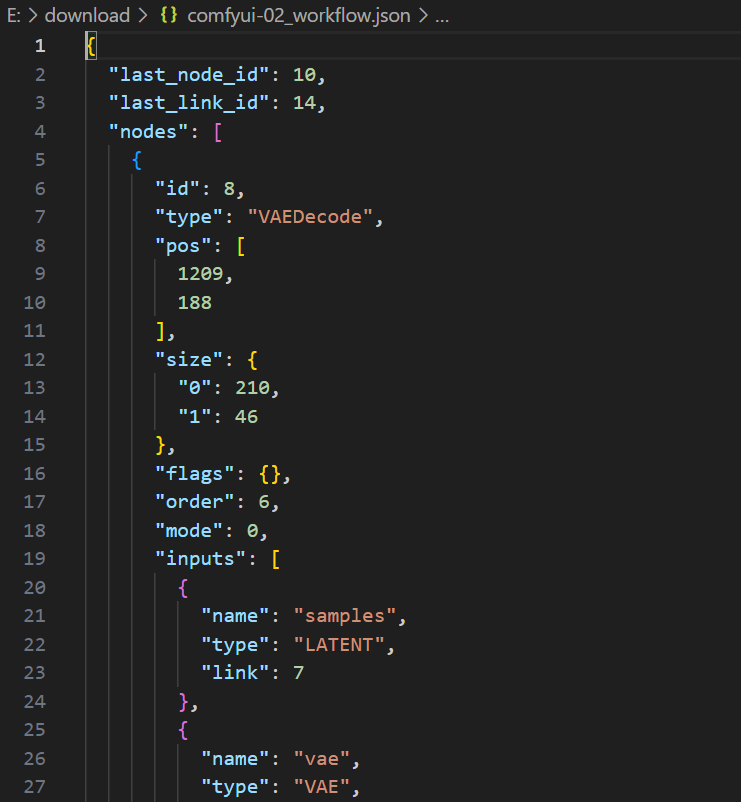
Truncated for brevity. You can see it stores all the node information — IDs, position coordinates, etc. When ComfyUI loads this information, it perfectly "reproduces" the entire node structure and all parameters within each node.
Loading Workflow from Generated Images in ComfyUI
In webui you use PNG Info to look up parameters — in ComfyUI it's even simpler: just drag the generated image directly into the web page.
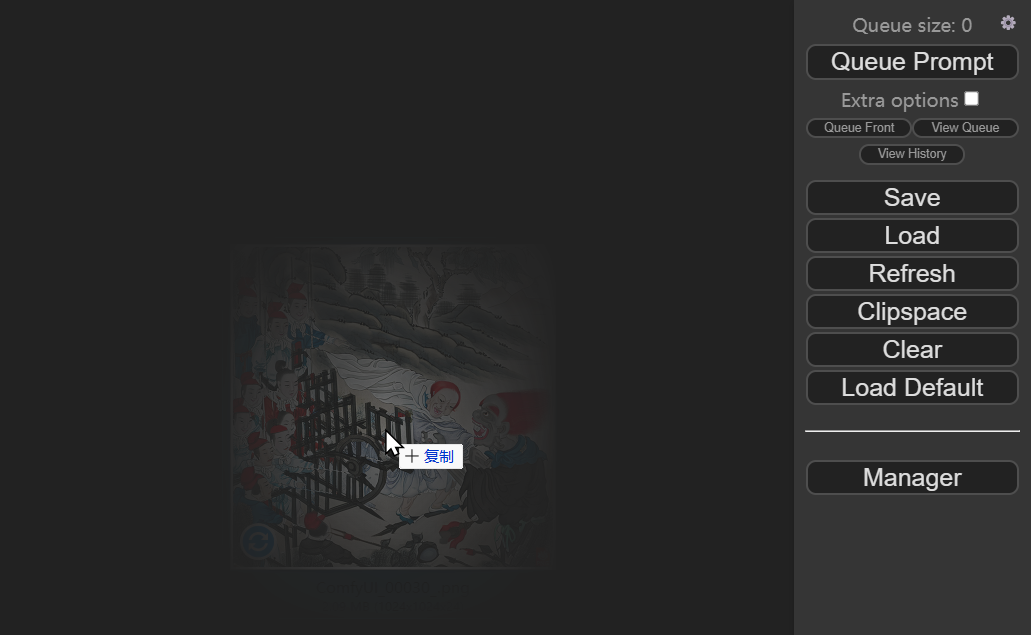
Drop it in and you get:
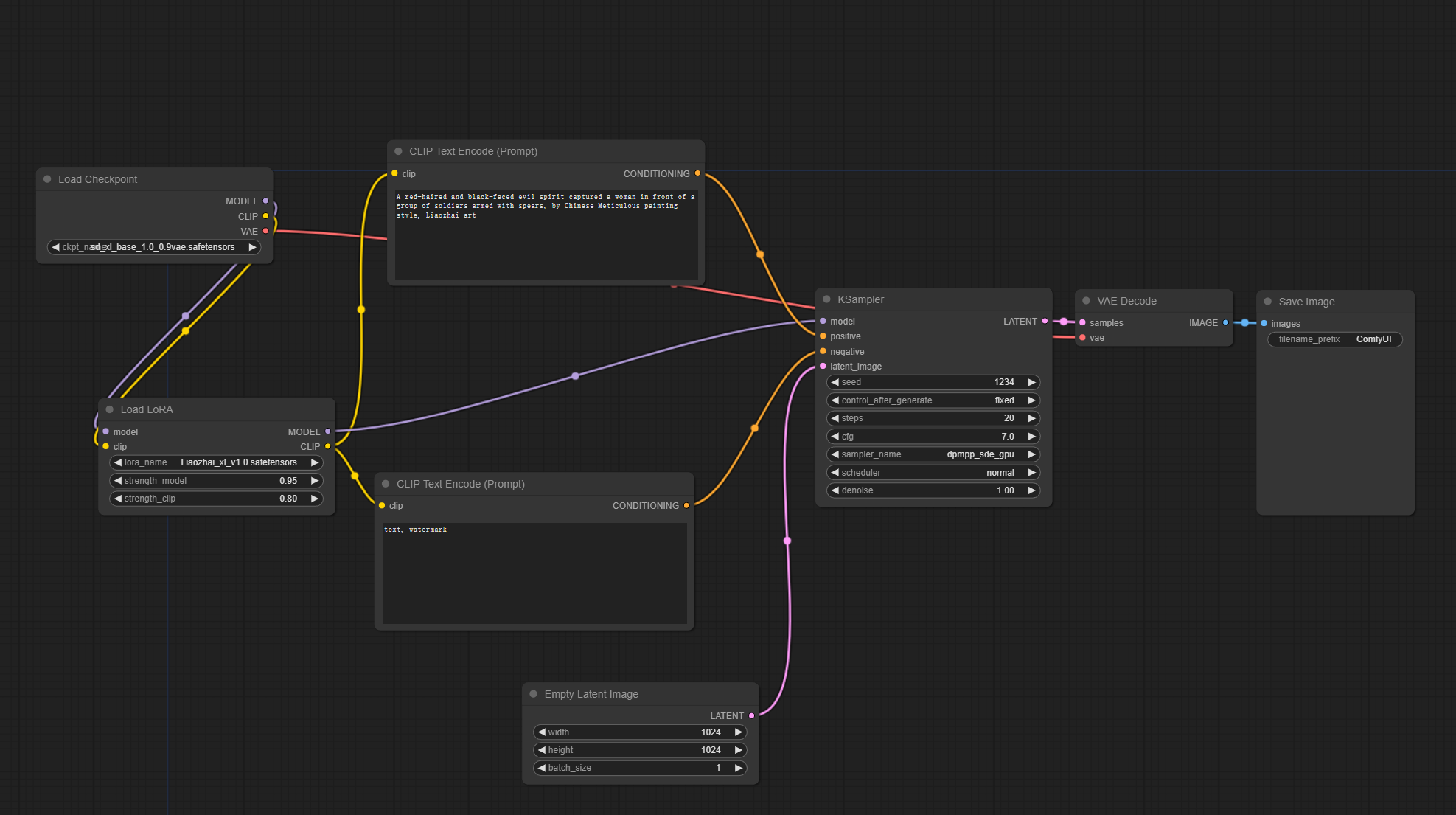
Reminder: back up your current workflow before dragging in a new one if needed.
ComfyUI can also save and load workflow files specifically — use the Save and Load buttons in the sidebar:
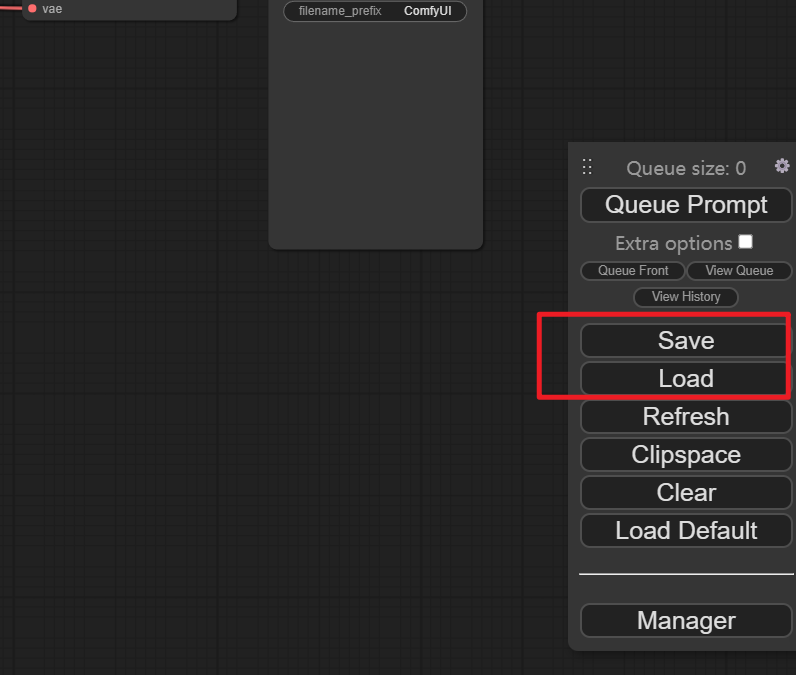
The saved file defaults to workflow.json, which you can open with a text editor:
Saving Workflow Info with Workspace Screenshots
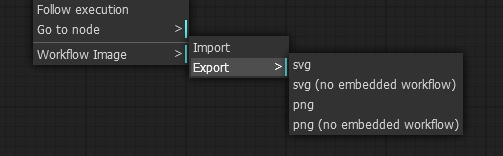
Beyond saving as a JSON file or embedding in generated images, workflow information can also be stored in workspace screenshots for a more visual approach:
Just install this plugin: ComfyUI-Custom-Scripts https://github.com/pythongosssss/ComfyUI-Custom-Scripts
This plugin provides many utility features, and saving Workflow Images is one of them.
 https://github.com/pythongosssss/ComfyUI-Custom-Scripts/tree/main#workflow-images
How to install ComfyUI plugins will be covered in the next lesson.
Workflow Resources
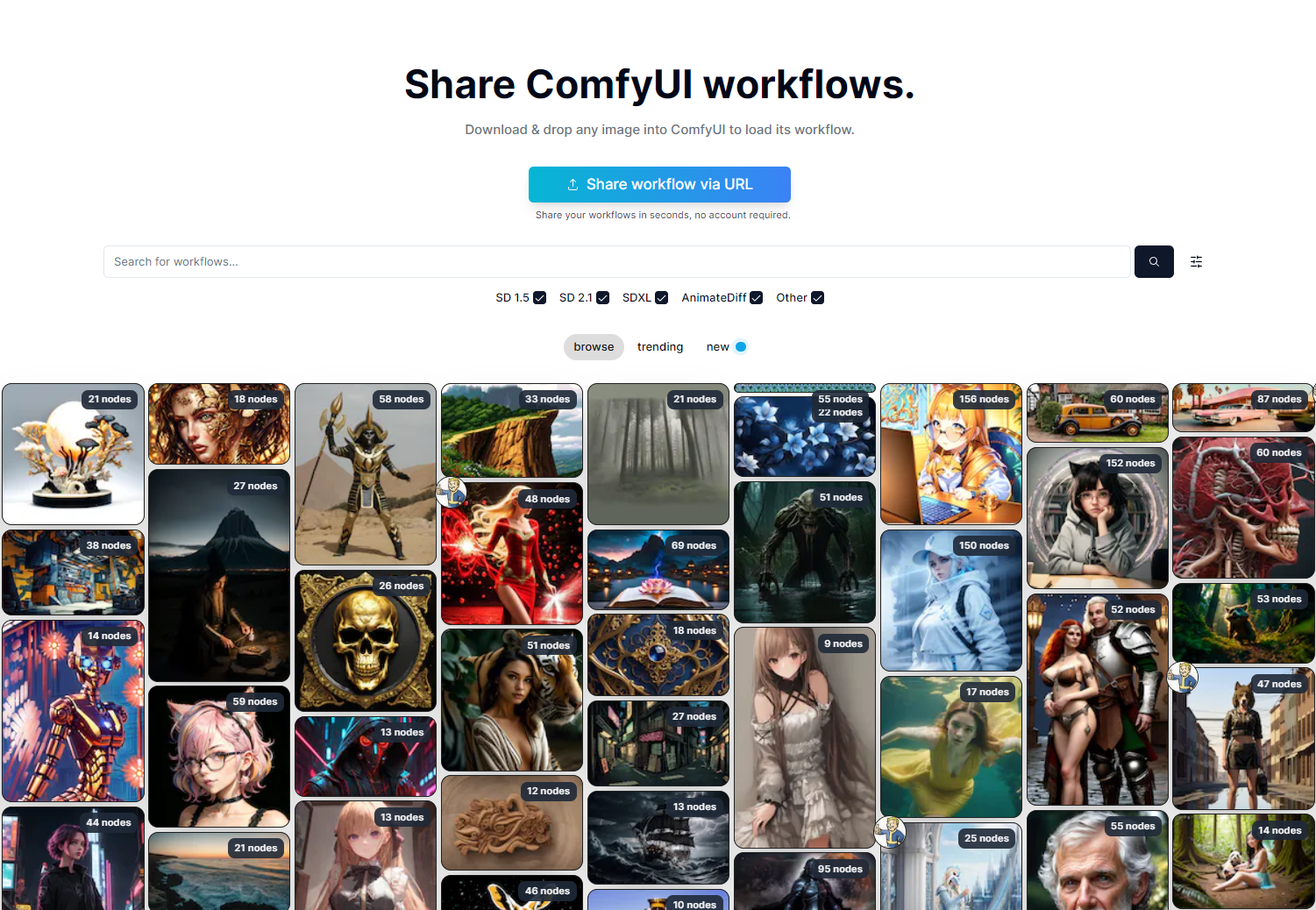
This website has a massive collection of ComfyUI Workflows that you can download directly, then open using the methods covered in this lesson. https://comfyworkflows.com/
Workflow and Data Driving
A few more thoughts: webui's PNG info stores data statically, more like the data-driven approach of the web 2.0 era. When using webui, the focus is on the generated image results and the corresponding prompts and parameters. Like traditional software, it's still relatively black-box.
ComfyUI's approach to saving and loading workflows adds a layer of workflow awareness on top of data — beyond just results, it also cares about the internal process. Once you use it more, you'll find it naturally guides you to think about optimizing or modifying workflows, opening up more flexible possibilities.
Also, node-based programming and dataflow/workflow concepts aren't new — I started using the node-based programming environment MaxMSP in 2005, and it's been around for over thirty years since its creation.
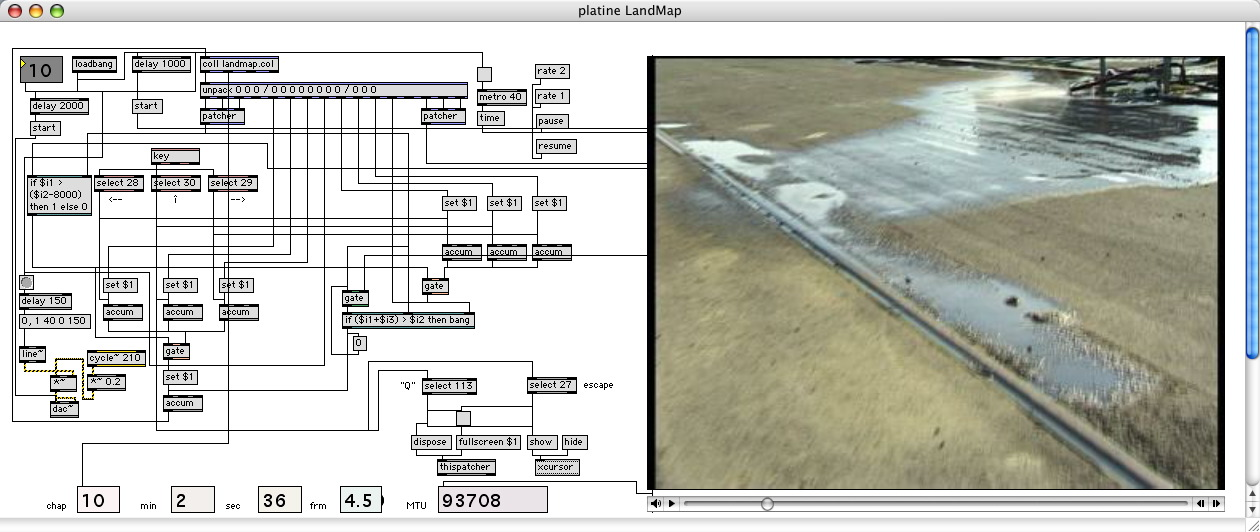 Image from Wikipedia, an ancient version of the MaxMSP interface.
https://en.wikipedia.org/wiki/Max_(software)
Image from Wikipedia, an ancient version of the MaxMSP interface.
https://en.wikipedia.org/wiki/Max_(software)
Follow us on social media: code2art
Community resources & courses: https://ghc.h5.xeknow.com/s/hzkMX
code2art Intelligence Center (membership): https://ghc.h5.xeknow.com/s/2BCFuJ
Cheers🍻
Contra